November 2, 2026
How to Handle Monthly Product Drops on Shopify (Without Holding Up Every Other Order)
Drops are a great sales model and an awkward fulfillment model. Whether you release a new collection on the first of every month, sell next season's range ahead of time, or put up a limited run that ships "week of the 20th," the same thing happens at checkout: customers mix drop items with things you could ship today.
Now one order has two ship dates. Hold it all back and the customer waits weeks for a t-shirt you had on the shelf. Ship it all now and the drop item leaves early — or shows up as missing when the warehouse picks the order. And if a 3PL pulls your orders automatically, it will happily try to fulfill a drop item three weeks before the drop.
This guide covers why drops clog up Shopify fulfillment, the workarounds merchants usually try first, and a rules-based setup that lets each drop ship on its own date without touching the rest of the order.
Why drops jam up Shopify fulfillment
Shopify is good at the launch side of a drop — scheduling when products go live, counting down, taking the money. The trouble starts one second after checkout, because the order that comes out is a single unit. Nothing in it says "these two items ship on the 20th and the rest ships today."
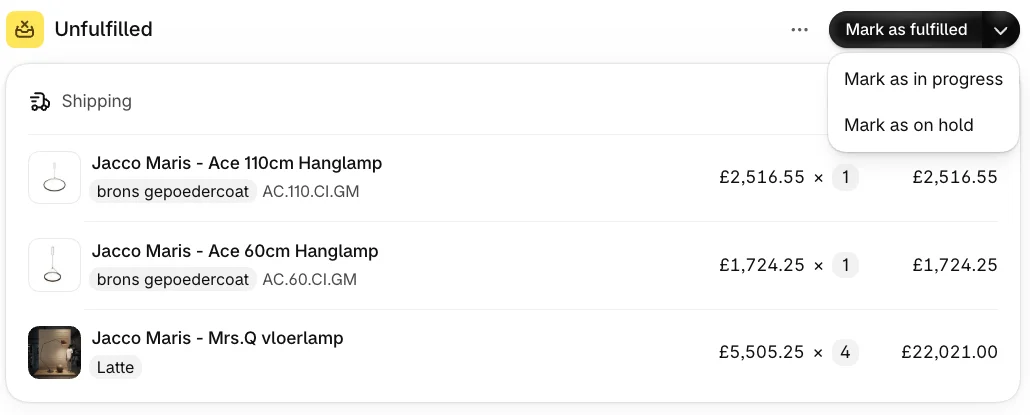
Shopify does have a native fulfillment hold: open an order and, in the dropdown next to Mark as fulfilled, choose Mark as on hold. The fulfillment is blocked until you release it, and you can automate holds with Shopify Flow. But a hold grabs the whole fulfillment — the in-stock t-shirt in that order is now on hold too. To hold just the drop items, you'd have to split the fulfillment first and then hold one part. That's two manual steps, per order, every day of the pre-drop window.
Shopify's own Launchpad app schedules the storefront side of a launch — product visibility, prices, themes — and it's Plus-only. It does nothing about orders that mix drop items with everything else.
So the gap is specific: nothing native automatically separates the "ships later" items from the "ships now" items on each order. And anything that isn't held is fair game — if a 3PL or warehouse app pulls your unfulfilled orders automatically, it will pick drop items weeks early.
The workarounds merchants usually try first
Ban mixed carts. Plenty of stores only let customers buy drop items on their own — separate checkout, separate order. It works, but it costs real money: the customer who would have added two in-stock items to their drop order now has to check out twice, and most won't. You're giving up exactly the add-on revenue a drop generates.
Hold every order that touches the drop. Simple to automate with Flow, and now a customer who bought one drop item and three basics waits three weeks for all of it. These are the "where is my order" tickets — and sometimes chargebacks — that make drops feel more painful than they should be.
Ship everything as it comes. The drop stops being a drop. Early units leak out, the warehouse picks orders with items that aren't in stock yet, and customers who paid for a release-day experience watch someone else get theirs two weeks early.
Do order surgery by hand. Split the fulfillment on each order, hold the drop part, release it on drop day. This is the correct logic — it's just manual. At ten orders it's fine. At three hundred orders it's someone's whole week, and it still has to happen before the 3PL pulls the order, which usually means within minutes, not mornings.
The clean setup: one rule per drop
The setup that works treats each drop as its own fulfillment batch, created automatically. With OrderSplit Pro it looks like this:
1. Tag the drop's products. Give every product in the drop its own tag before it goes live — "drop-december", "SS26 Drop 2", whatever matches how you name releases. You're probably doing this already for collections and theme sections.
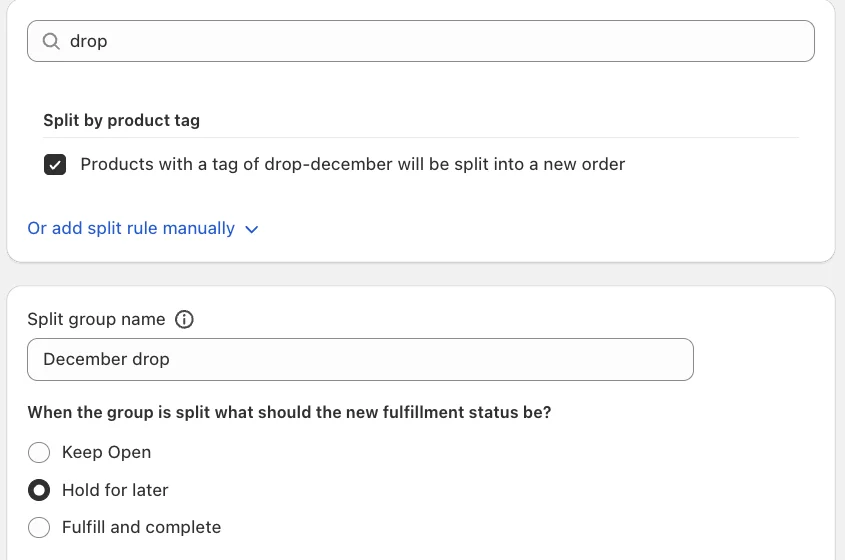
2. Create a split rule for that tag. In the app, set up a split group that matches the drop's tag. From then on, whenever an order contains drop items, those items are separated into their own order within seconds of checkout. The original order keeps only the ship-now items and looks completely normal to your warehouse or 3PL.
3. Hold the drop order. Set the new order's fulfillment status to "Hold for later." Held orders don't show up as fulfillable, so nothing — human or 3PL — ships them early. Add an order tag with the drop's name so they're easy to find.
4. Release on drop day. Filter your orders by the drop's tag, release the holds, and fulfill the whole drop as one batch. The customers who ordered early already received their in-stock items weeks ago.
Next month's drop is the same thing with a new tag: tag the products, duplicate the rule, done. The drop calendar stops being a fulfillment problem and becomes a filter in your orders list.

Patterns this unlocks
Two drops in one cart. A regular customer buys from December's drop and pre-orders January's in the same checkout. With one rule per drop, that becomes three orders: in-stock items ship today, December's items ship with the December batch, January's with January. Each on its own date, with no one touching anything.
Drop stock at a different warehouse. If a drop is produced or stored somewhere other than your main location, the same rule can reroute the split order to that location — so it never confuses the main warehouse at all. (More on location routing in our guide to fixing orders that go to the wrong location.)
Wholesale prebook and ship windows. The B2B version of the same problem: retailers order a whole season up front, with items shipping in different windows — a January book, a February book, a March book. Fashion brands running B2B stores handle this with one rule per ship window, tagged per window, each held until its window opens. Same mechanics, bigger order values.
Advent calendars and seasonal pre-sells. Sell the calendar from September, ship it in November, and let everything else the customer adds ship immediately. One rule on the calendar's tag does it.
A quick checklist for your next drop
1. Tag the drop's products with a tag unique to that drop, before it goes live.
2. Decide the split — what ships now, what ships on drop day. A rule on the drop's tag separates them automatically on every order.
3. Hold the drop orders so nothing and no one can ship them early — especially if a 3PL pulls your orders automatically.
4. On drop day, filter orders by the drop's tag, release, and fulfill as one batch.
5. Only a handful of orders? Manual works: Split fulfillment from the order's ⋯ menu, then Mark as on hold. Just do it before your 3PL gets there.
Run it this way once and the next drop takes five minutes to set up — and nobody emails to ask where their t-shirt is.