November 2, 2026
Why Does Shopify Send Orders to the Wrong Location? (And How to Fix It)
If orders keep getting assigned to a warehouse that shouldn't fulfill them, the cause is almost always the same: Shopify's routing rules don't know things about your stock that you know. The 3PL receives an order for items it doesn't hold. The overseas warehouse gets an order your local warehouse could ship tomorrow. A supplier's products end up assigned to your own shop floor.
This guide covers how Shopify decides which location gets an order, the setups where that logic goes wrong, how to move a single order, and how to fix the problem permanently.
How Shopify decides which location fulfills an order
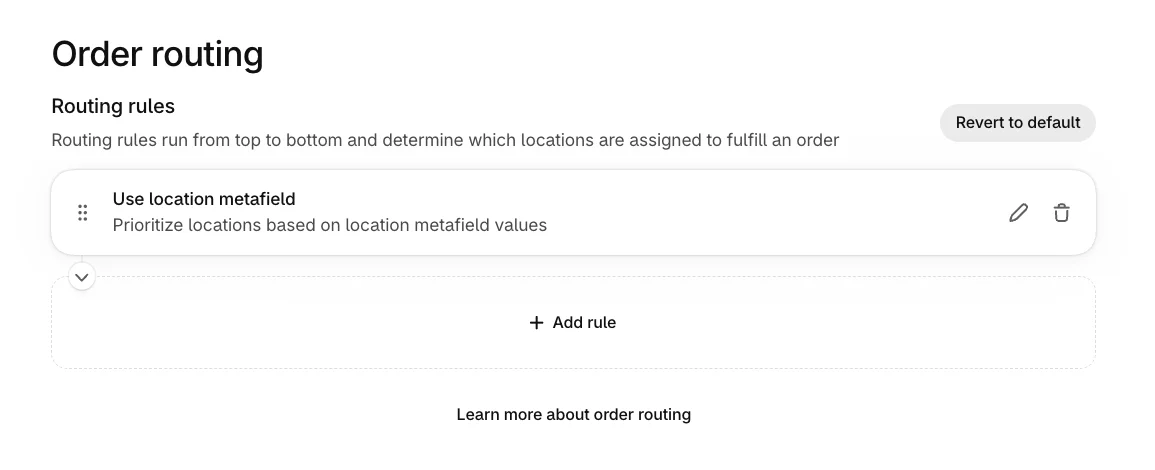
Shopify assigns a fulfillment location the moment an order is placed. It first checks which of your locations have the items in stock, then applies your order routing rules in sequence to pick between them. You'll find these under Settings → Shipping and delivery → Order routing.
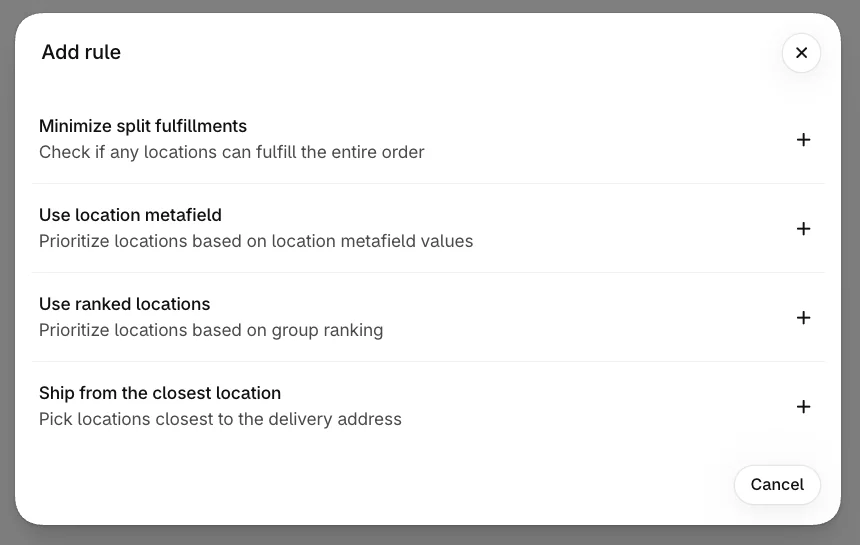
There are four built-in rules, and you control the order they run in:
• Minimize split fulfillments — prefer a location that can ship the entire order in one go
• Ship from the closest location — pick the location closest to the delivery address
• Use ranked locations — a priority ranking you set yourself
• Use location metafield — prioritize locations by values you store on them, like warehouse capacity or dispatch speed
If no single location has everything, Shopify splits the order across locations following the same rules.
This is a genuinely capable system, and set up well it solves more than most merchants expect. But notice what every rule has in common: they all choose between locations using properties of the location — its distance, its rank, its metafield values. None of them can look at what an item is: its vendor, its tags, its weight, whether it's a pre-order. Shopify does offer custom location rules that can go further, but they're available by request, on Shopify Plus only, and need a developer to build.
One more detail explains a lot of routing problems: Shopify only routes to locations that show available inventory for the item. If the stock numbers are wrong, routing is wrong, and no rule can save it.
Why orders end up at the wrong location
Four setups cause most of the trouble.
Two warehouses stock the same item. Say you hold stock in the UK and in China, or in Sydney and Shenzhen. Shopify picks between them using distance or your ranking — not shipping cost, customs exposure, or which stock you want to run down first. "Closest location" sounds sensible until you see what it actually picks.
Your 3PL and your own site both show inventory. A retail shop or showroom often shows a few units — returns, display stock, a safety buffer. If those units are marked as available, orders can route there instead of to the 3PL that should be shipping them.
"Minimize split fulfillments" outranks everything else. With this rule first, one item that's out of stock at your main warehouse can push the entire order to the only location holding everything — often the overseas one. One line item quietly changes where the whole order ships from.
Some items belong to someone else's location. Products a vendor ships directly, made-to-order items produced elsewhere, pre-order stock sitting at a holding warehouse. These need to route by what the product is — its vendor or tag — and the built-in rules have no way to say that.
How to fix a single order
You can move an order between locations by hand. Open the order in your Shopify admin, find the card with the unfulfilled items, open its ⋯ menu and choose Change location. Pick the right location and the fulfillment request moves there.
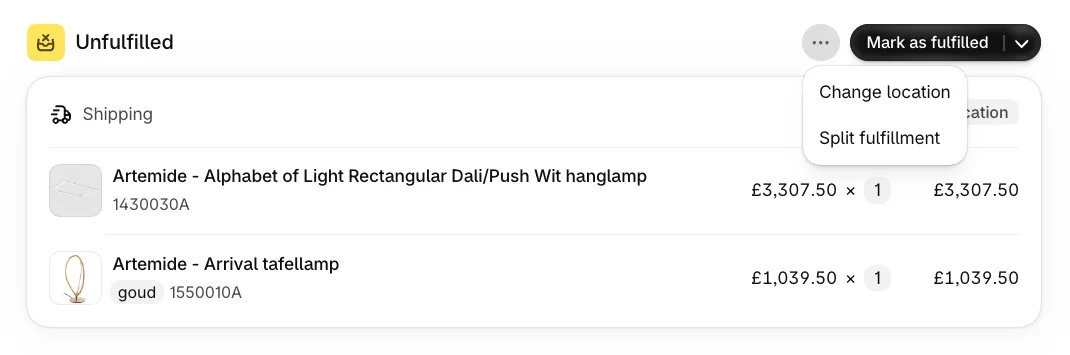
If only some of the items should move, split them off first. The same menu has Split fulfillment: select the items that belong elsewhere, and you can then change the location on just that part. Shopify moves these menus around from time to time, but both actions live on the order page.
This works fine for the odd order. If you're doing it every morning before your warehouse starts picking, it isn't a fix — it's a job, and one that happens too late if your 3PL pulls orders automatically.
How to fix it permanently
Start with the two things the built-in settings can handle, because they fix a lot:
1. Clean up where inventory shows as available. For each product, check which locations stock it (on the product page, under Inventory). If a location should never ship it — the showroom, the photo studio — untick it there. Shopify can't route to a location that doesn't claim stock.
2. Put your routing rules in the right order. If your real rule is "always ship from warehouse A before warehouse B," move Ranked locations to the top and set the ranking. If orders keep going abroad because of one missing item, check whether Minimize split fulfillments is doing it.
If your problem is geographic or priority-based, stop there — the built-in rules are enough and you don't need an app.
What the built-in rules can't do is route by what the product is. "Everything from this vendor ships from their warehouse." "Pre-order items go to the holding location and wait." "Heavy items ship from the freight depot." There is no way to express any of that in Shopify's routing settings on any plan — the closest option is a custom-built location rule, which is Plus-only and by request.
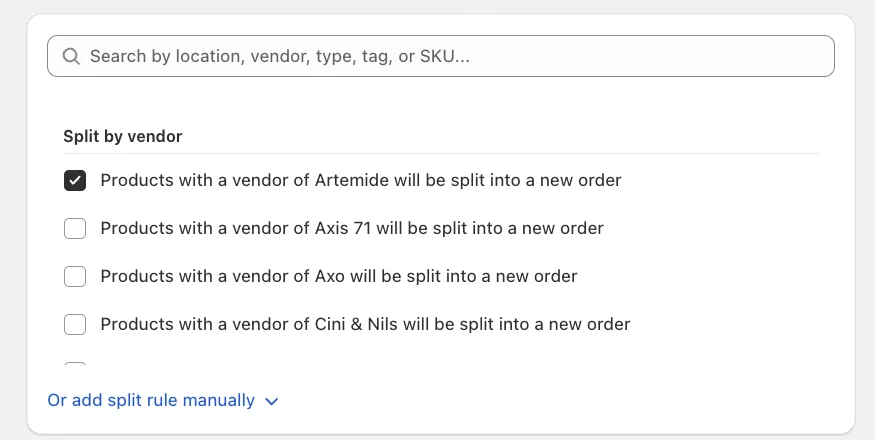
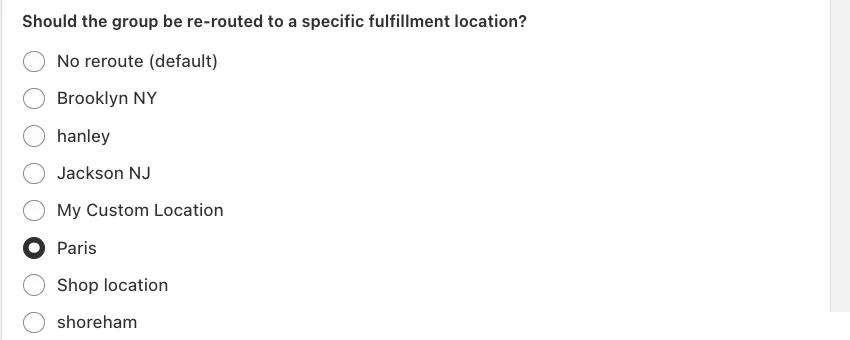
This is the job OrderSplit Pro was built for. You set up rules based on product tag, vendor, SKU, type, or location. When an order comes in, the matching items are automatically separated out and rerouted to the location you chose, seconds after the order is placed — before your warehouse or 3PL picks it up. You decide what happens next: fulfill the new order, keep it open, or hold it for later. It works on every Shopify plan, with no developer needed.
A quick checklist
Next time an order lands at the wrong location, go through this in order:
1. Where does Shopify think the stock is? Check the product's inventory by location. Remove availability from locations that should never fulfill it.
2. What do your routing rules say? Settings → Shipping and delivery → Order routing. Check which rule runs first and whether your ranked list is right.
3. Is the mistake about geography, or about the product? Wrong country or wrong priority — the built-in rules can fix it. Wrong because of what the item is (vendor, pre-order, weight, product type) — the built-in rules can't, and that's when you need rule-based routing like OrderSplit Pro.
4. Just this one order? Open it and use Change location. Done.
Most merchants only notice routing when it goes wrong — usually via a confused warehouse email. Ten minutes checking the three settings above is usually enough to find out which kind of problem you have.